The editor at a glance
What every panel does, and the shortcuts that save you time.
1 min read · updated 1 October 2026
Open the editor from a funnel with Edit page. The page you're building sits in the middle, exactly as shoppers will see it.
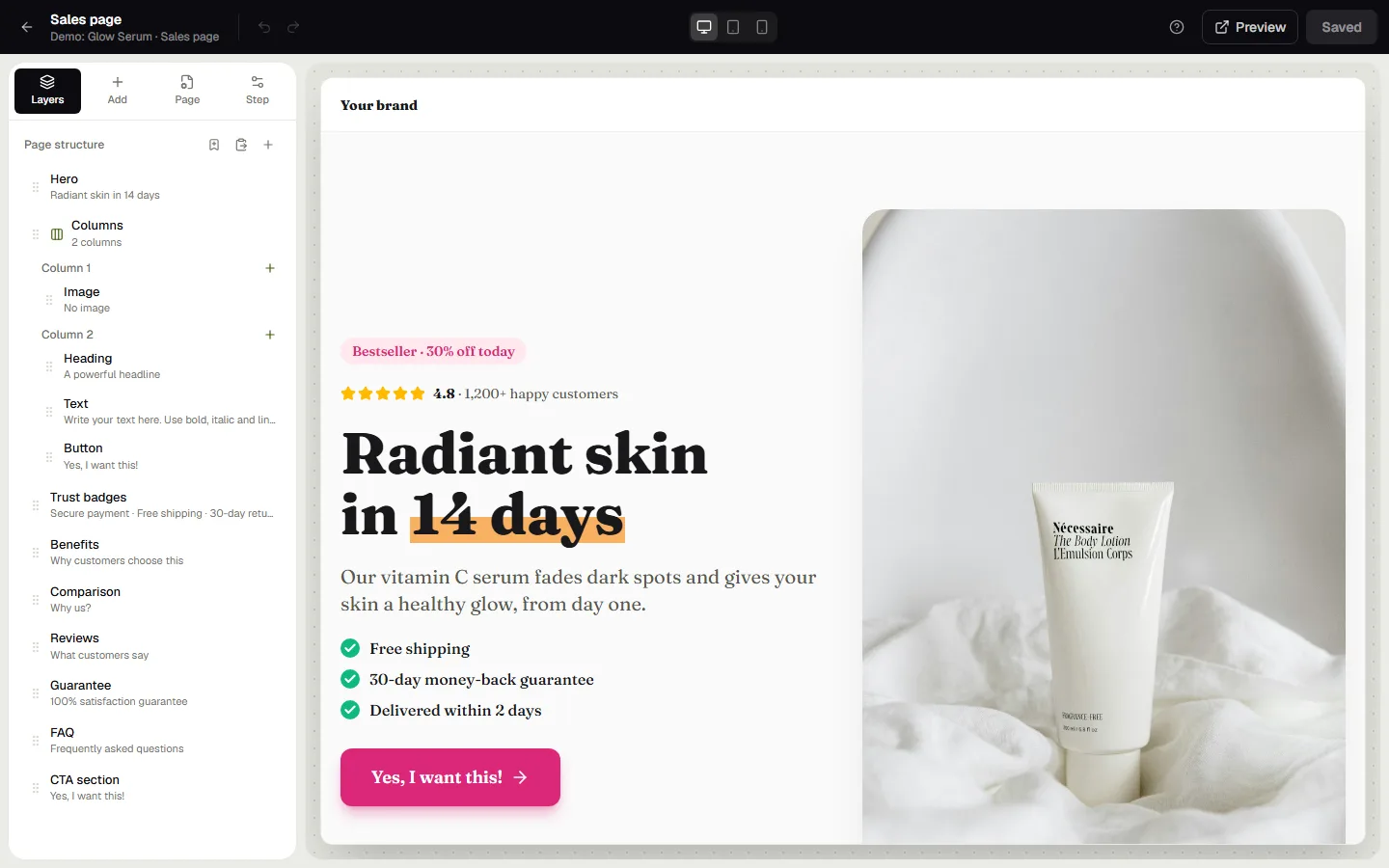
The left panel
- Layers: the structure of the page. Click a block to select it, drag to reorder, also into and out of columns.
- Add: every block, grouped by type, plus your saved blocks. Click to add after the selected block, or drag a block onto the exact spot you want.
- Page: settings for the whole page: background, text colour, hiding the header or footer, a sticky button on mobile, SEO texts, the share image and custom CSS.
- Step: what this step sells and where visitors go next (see Steps and routes).
The right panel
When you select a block, its settings open on the right: Content (texts, images, links) and Style (colours, spacing, borders, animation and more). Nothing selected? The page gets the full width.
The top bar
Switch between desktop, tablet and mobile width, undo and redo, open a preview, and save. If the step runs an A/B test, you can switch between variant A and B here too. Your AI credits are shown at the top as well.
Shortcuts
- Ctrl+S save
- Ctrl+Z undo, Ctrl+Shift+Z or Ctrl+Y redo
- Del delete the selected block
- Ctrl+D duplicate
- Ctrl+C / Ctrl+V copy and paste a block, also between pages
- Esc deselect
Tip: the editor warns you when you try to leave with unsaved changes.
Was this guide helpful?
Try it in your own store
Free for 14 days. Every feature, no credit card.