Connect Stripe and get paid
Take cards, Apple Pay, iDEAL, Bancontact, Klarna and more in your checkout.
1 min read · updated 1 October 2026
FunnelOne uses your own Stripe account for payments. The money goes straight to you, and Stripe pays it out to your bank.
Connect your account
- Create a free account at stripe.com (or log in).
- In Stripe, go to Developers → API keys and copy the publishable key and the secret key.
- In FunnelOne, open Settings → Payments and paste both keys.
- Press Save & test Stripe. We check the connection straight away.
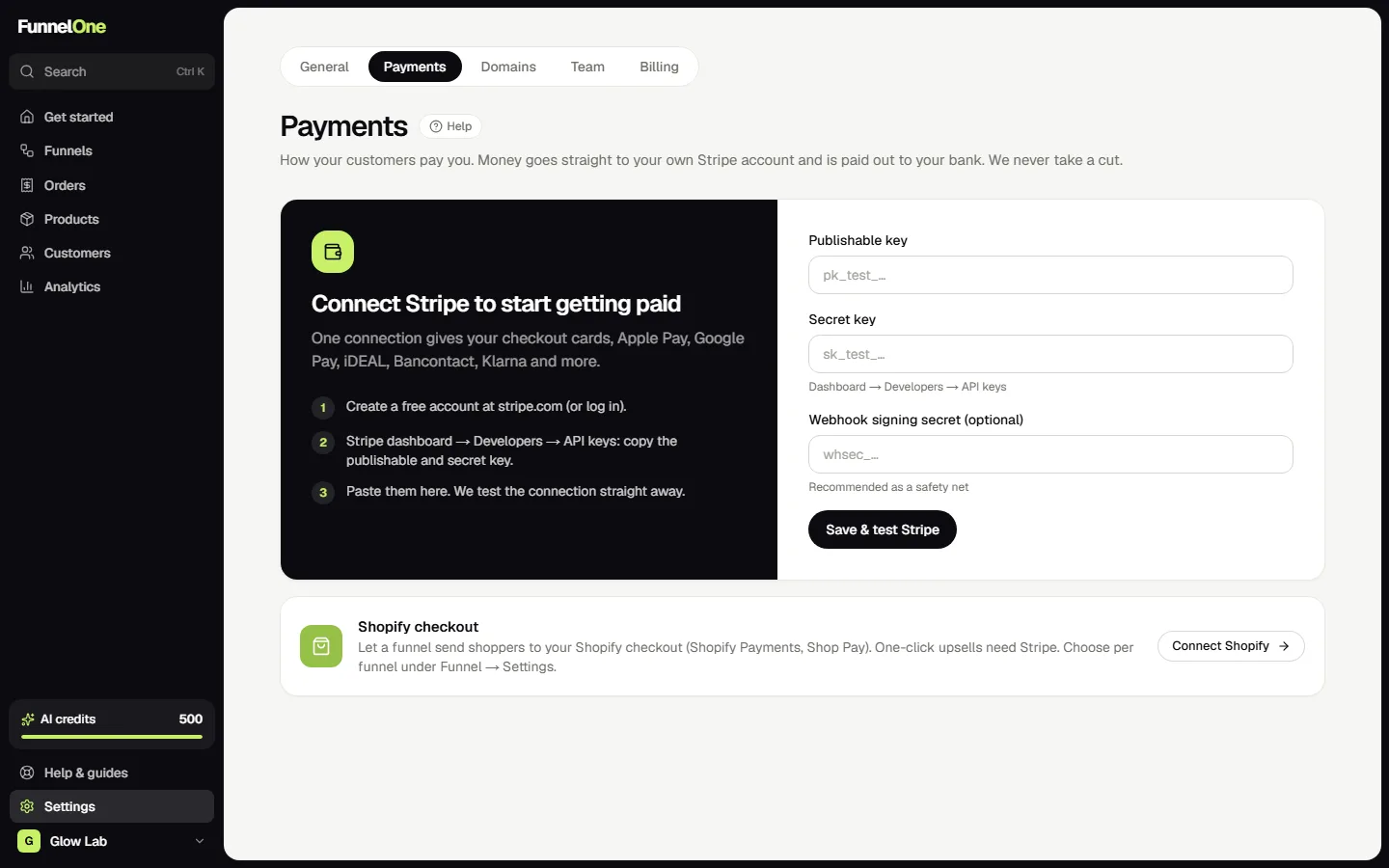
Keys that start with pk_test and sk_test are test keys: use them to try your funnel with Stripe's test cards. Switch to your live keys when you're ready to sell.
Payment methods
Your checkout shows every payment method that's switched on in your Stripe account: cards, Apple Pay and Google Pay, iDEAL, Bancontact, Klarna, SEPA and more. The Payments page shows which ones are ready, pending or off. To switch one on, press Manage in Stripe.
The webhook (recommended)
A webhook lets Stripe tell FunnelOne about payments even when a shopper closes the page right after paying. Add a webhook in Stripe pointing to the address shown on the Payments page, then paste its signing secret in FunnelOne.
Was this guide helpful?
Try it in your own store
Free for 14 days. Every feature, no credit card.